BSS Banner
Created on: Dec 08, 2025
PRE-REQUISITES
-
The plugin requires you to install the BSS Core plugin first.
INSTALLATION
-
Go to the Order Details Page and Download plugin package
-
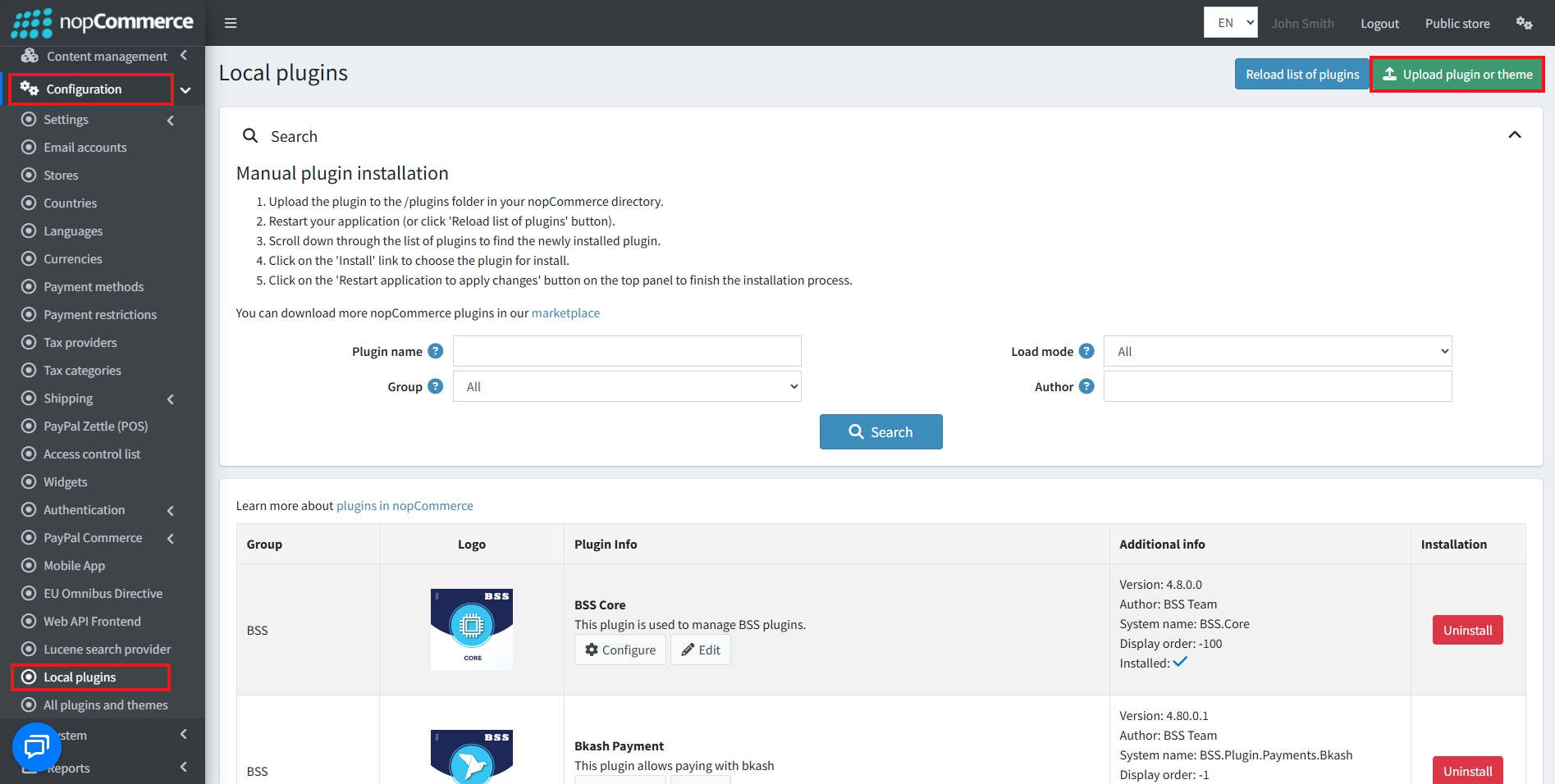
Go to Administration → Configuration → Local plugins
-
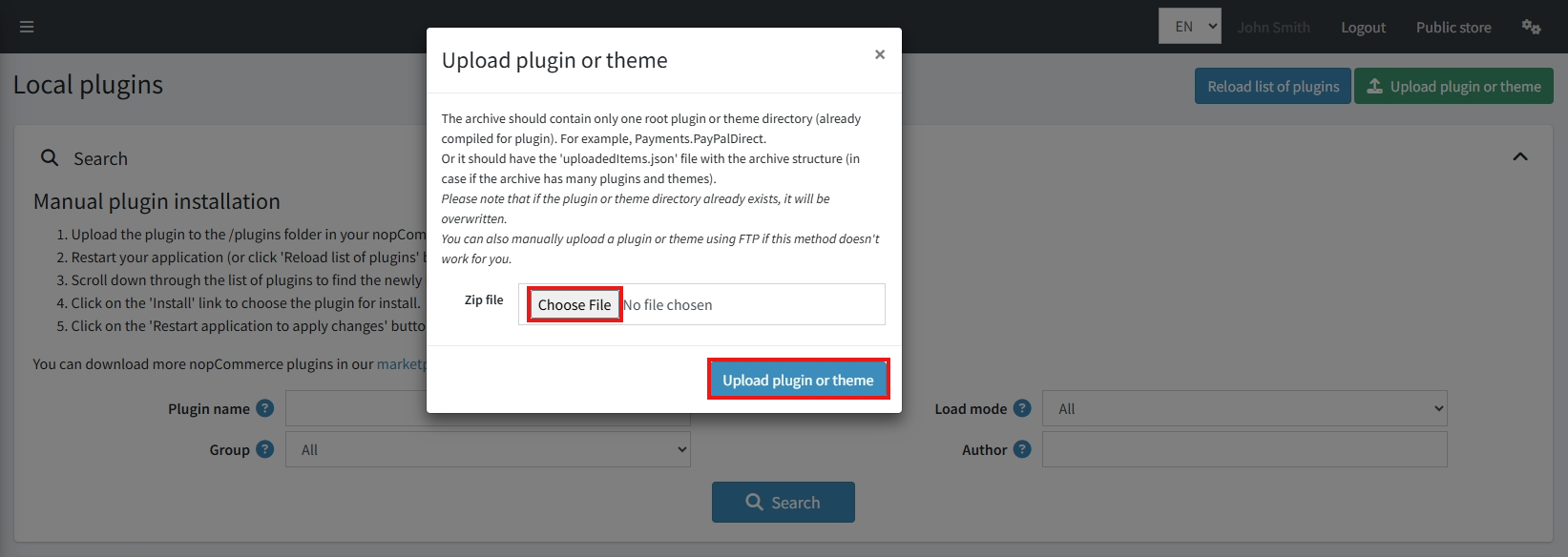
Within the bundle, you get all the required files, including BSS.Core
-
Upload the zip files using the 'Upload plugin or theme' button
-
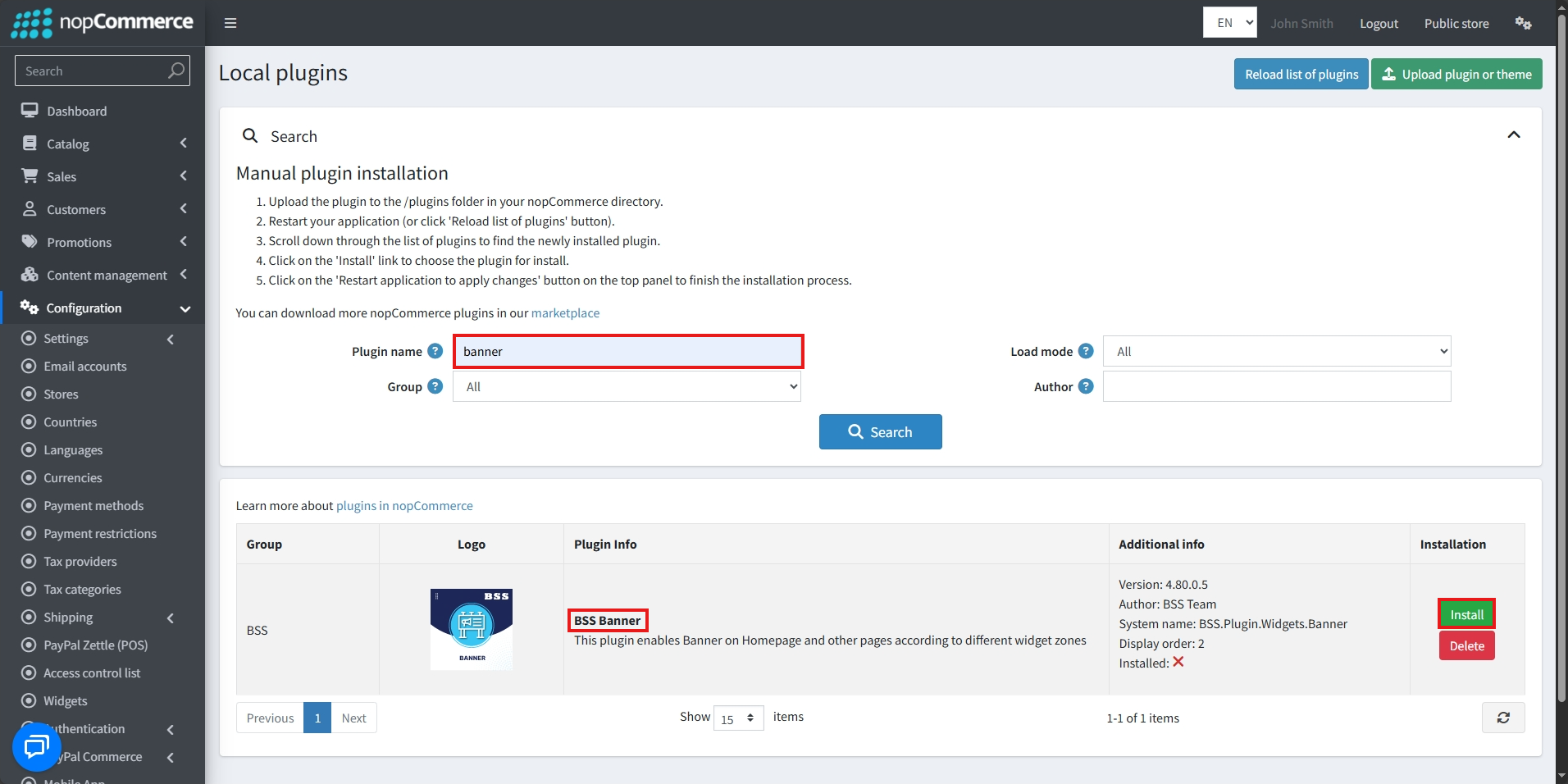
After uploading, install the 'BSS Core' Plugin first.
-
Then scroll down or write the name of the plugin in the search bar to find and install 'BSS Banner'
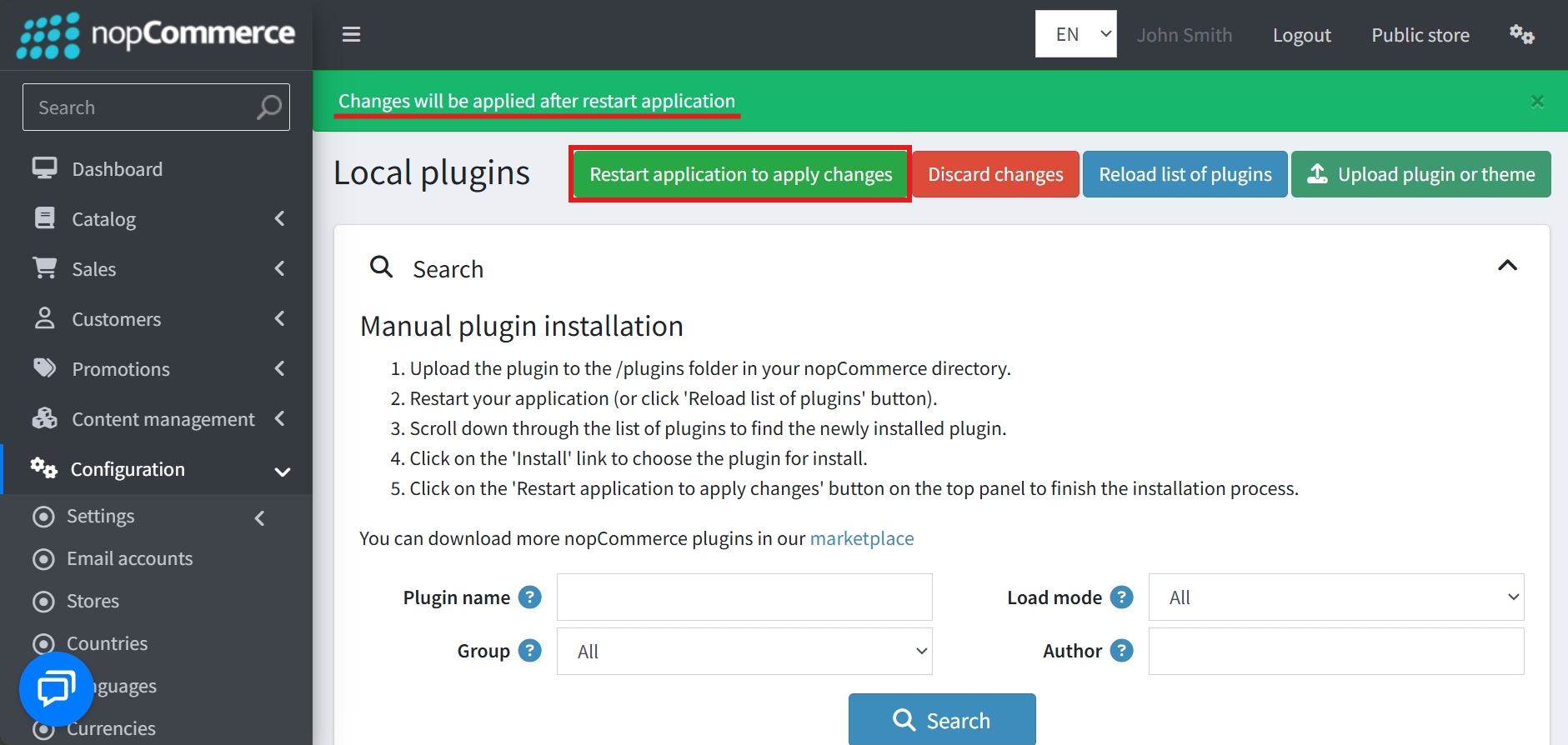
- To make the plugins functional, restart the application
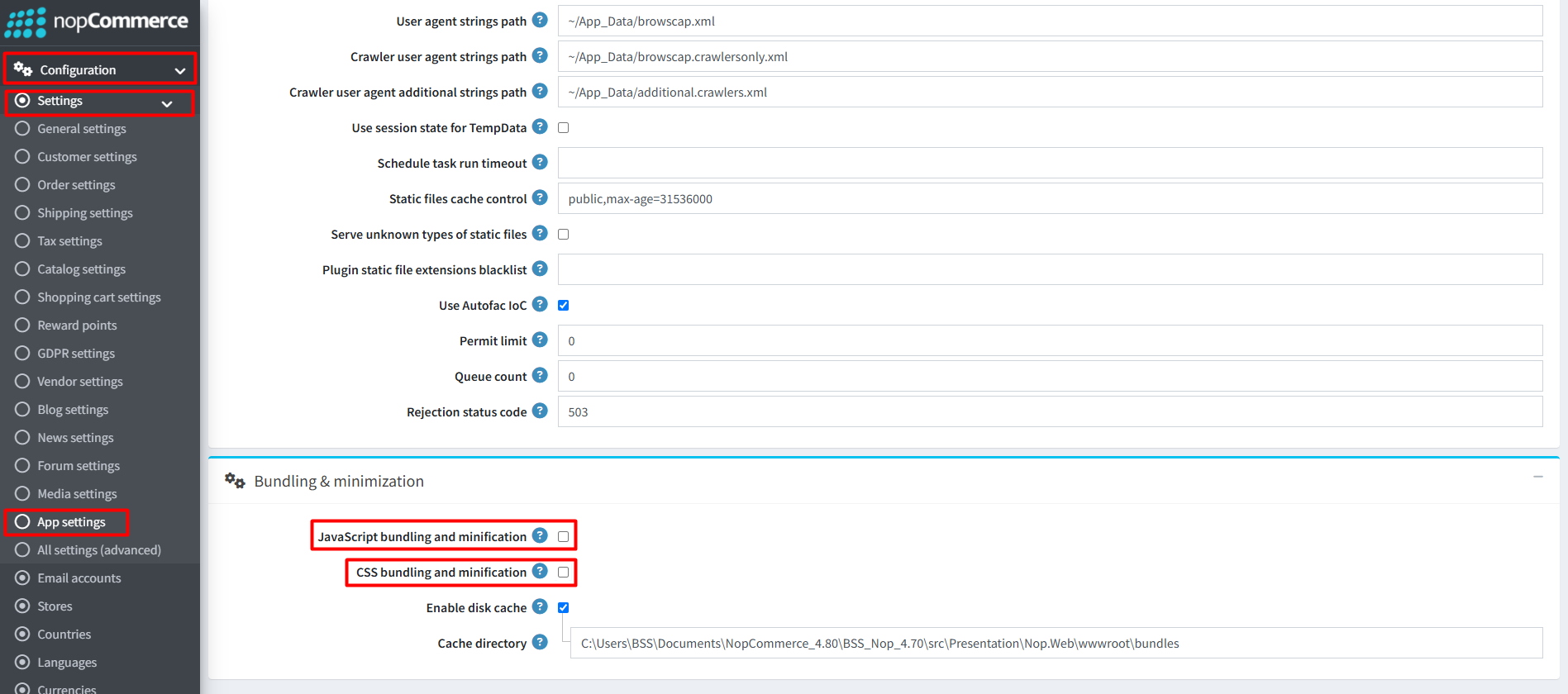
Recommendation: Go to > App Settings. If you find JavaScript bundling and minification, CSS bundling and minification are checked, then uncheck these two options and disable them.
CONFIGURE
-
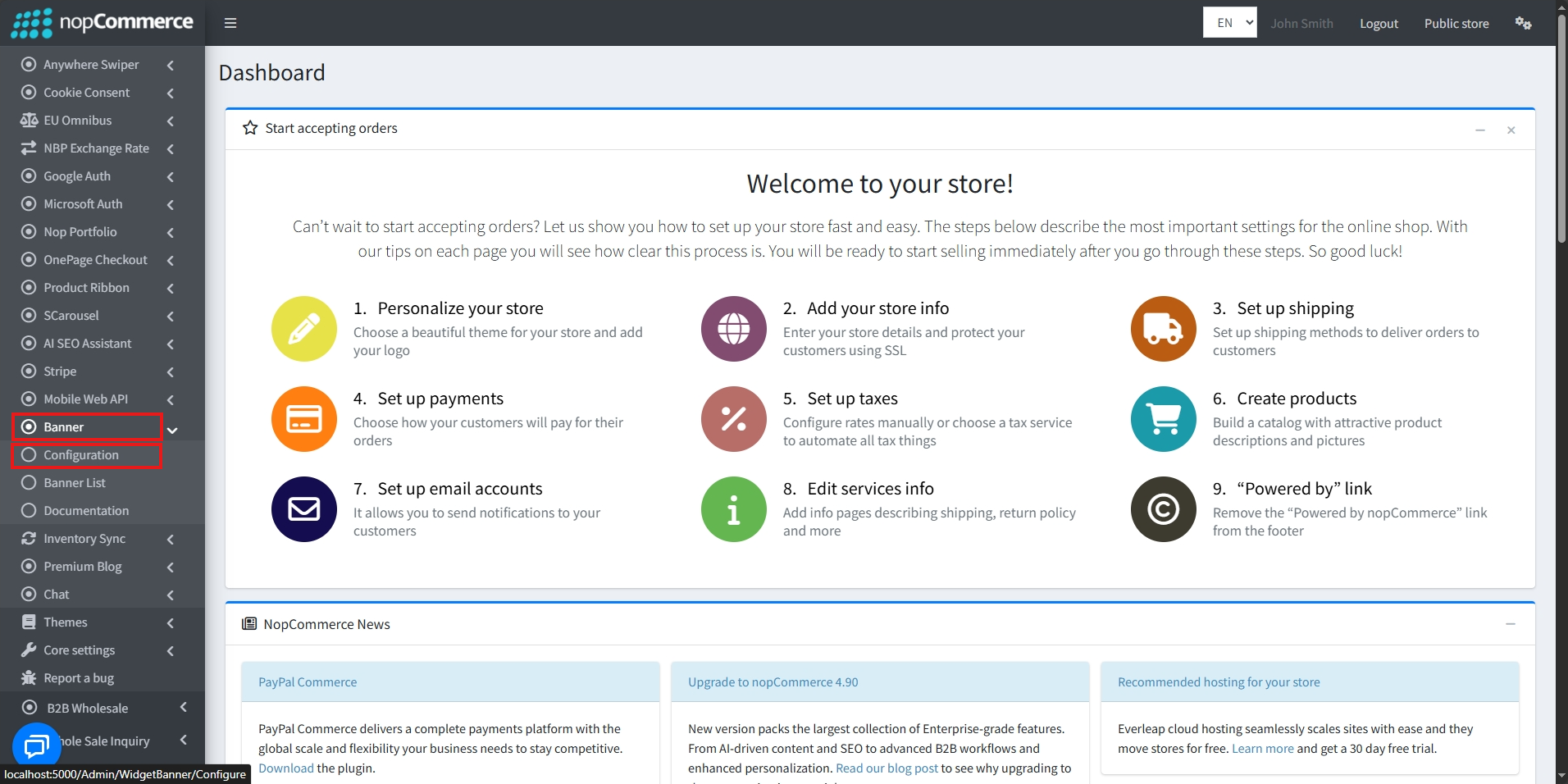
Go to Admin → BSS → Plugins → Banner → Configuration
-
Enter the License string and save it. Then clear cache.

-
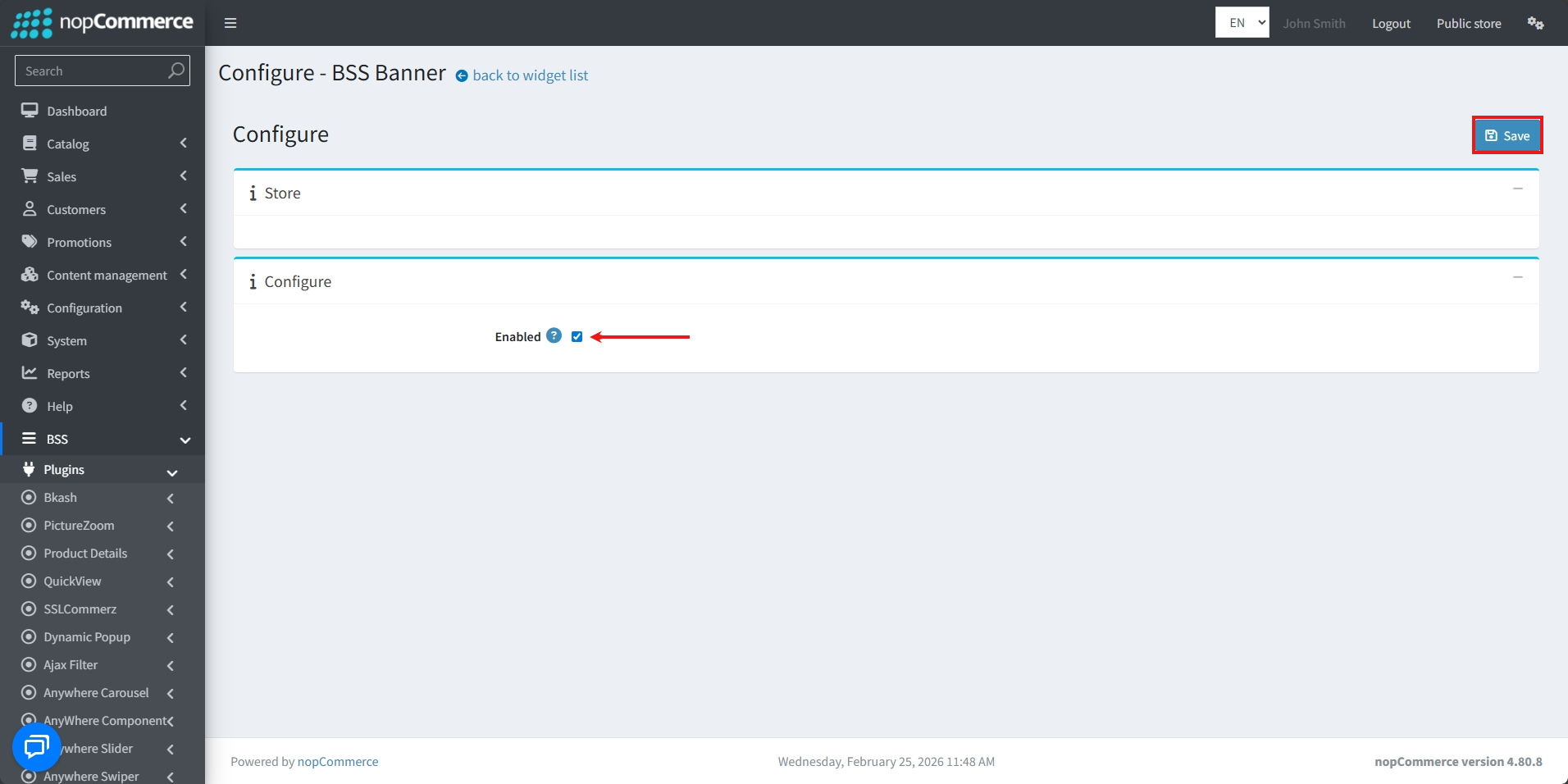
Then again go to BSS → Plugins → Banner → Configuration to set the configuration.
-
Enable banner: Check or uncheck the checkbox to enable or disable banner, then click the Save button
LIST
-
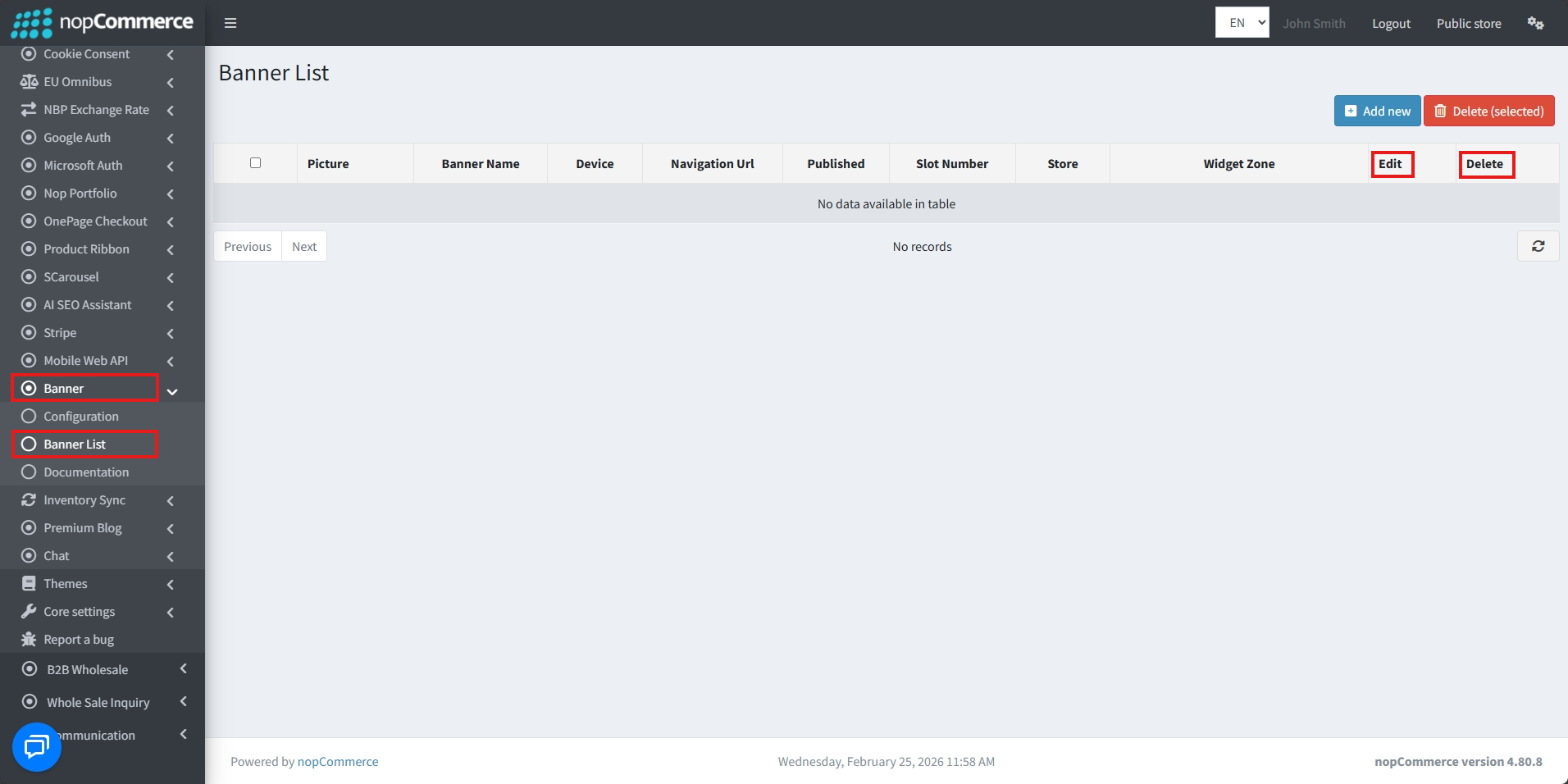
Go to BSS → Plugins → Banner → Banner List
-
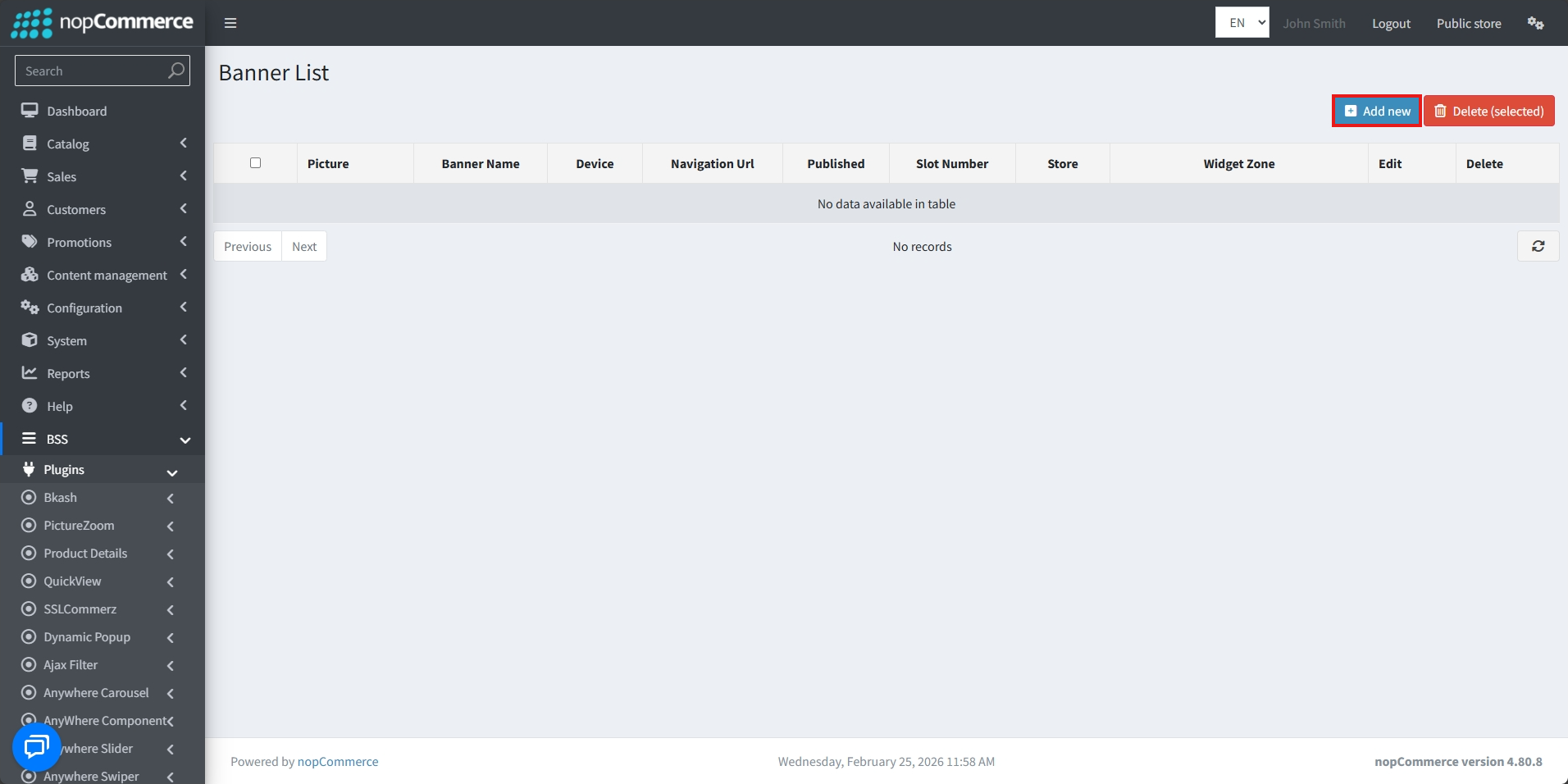
The list of existing banners and their details will be displayed
-
Existing banners can be Edited and Deleted by clicking on the Edit and Delete buttons respectively
-
Click on ‘Add new' to create a new Banner
-
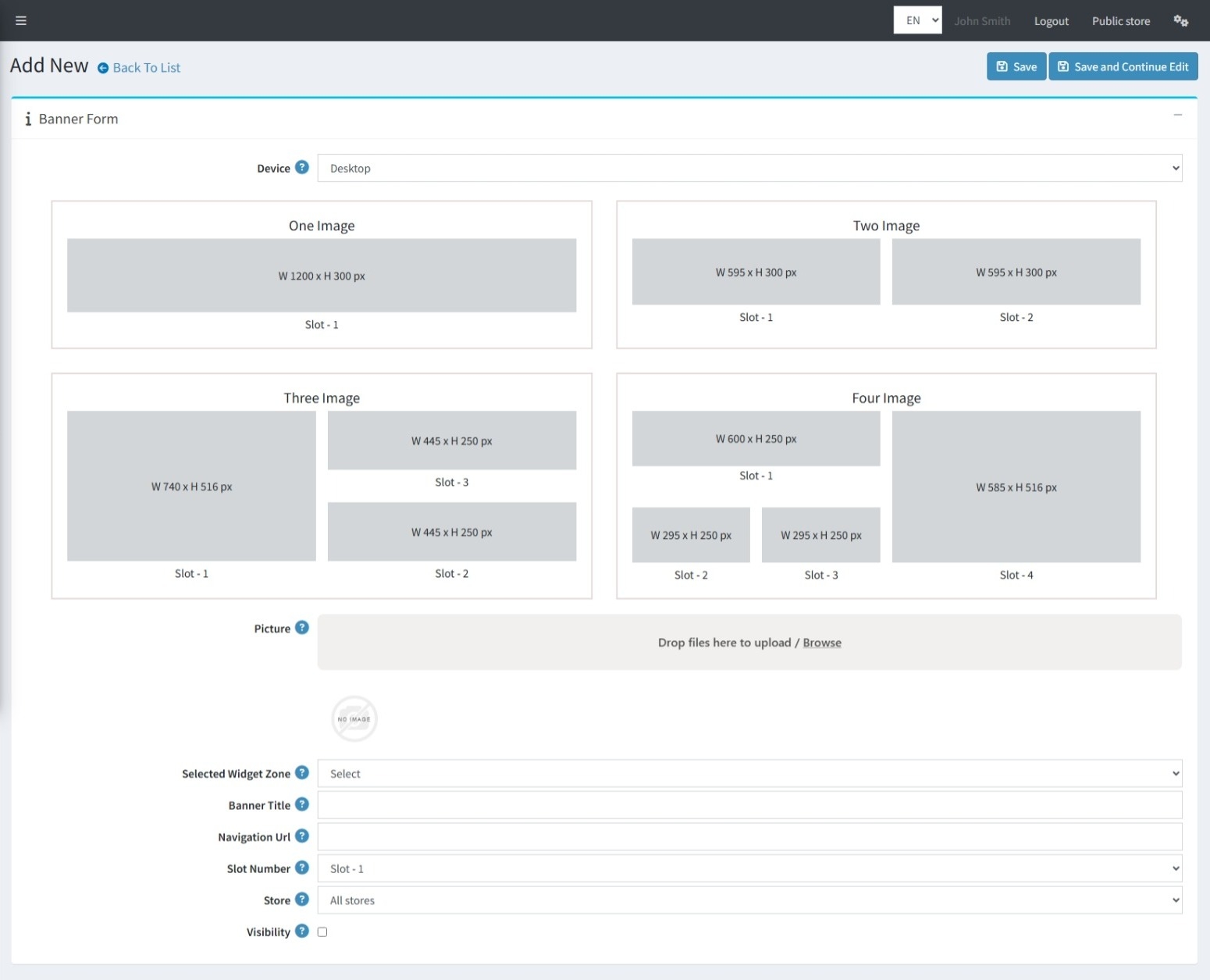
A Banner can be created by uploading images in the Banner Form. Ensure that the images match the required height and width specified for each template.
-
Setting the Selected Widget Zone will determine the position of the banner list on the website. The banner can be hooked to predefined areas of the site, such as ‘home_page_top,' ‘home_page_bottom,' ‘categorydetails_top,' etc.
-
Set a Banner Title for administrative purposes.
-
Each banner image can have a Navigation URL, so when a customer clicks on a specific image, they are redirected to the appropriate product, category, or promotional page.
-
The Slot Number designates the exact position of each image in a multi-image banner block.
-
Store can be set to determine which specific stores display the banner in a multi-store environment.
-
Check Visibility to display the banner.
PUBLIC VIEW
FEATURES
-
Provides easy installation and configuration through a clean, intuitive admin panel.
-
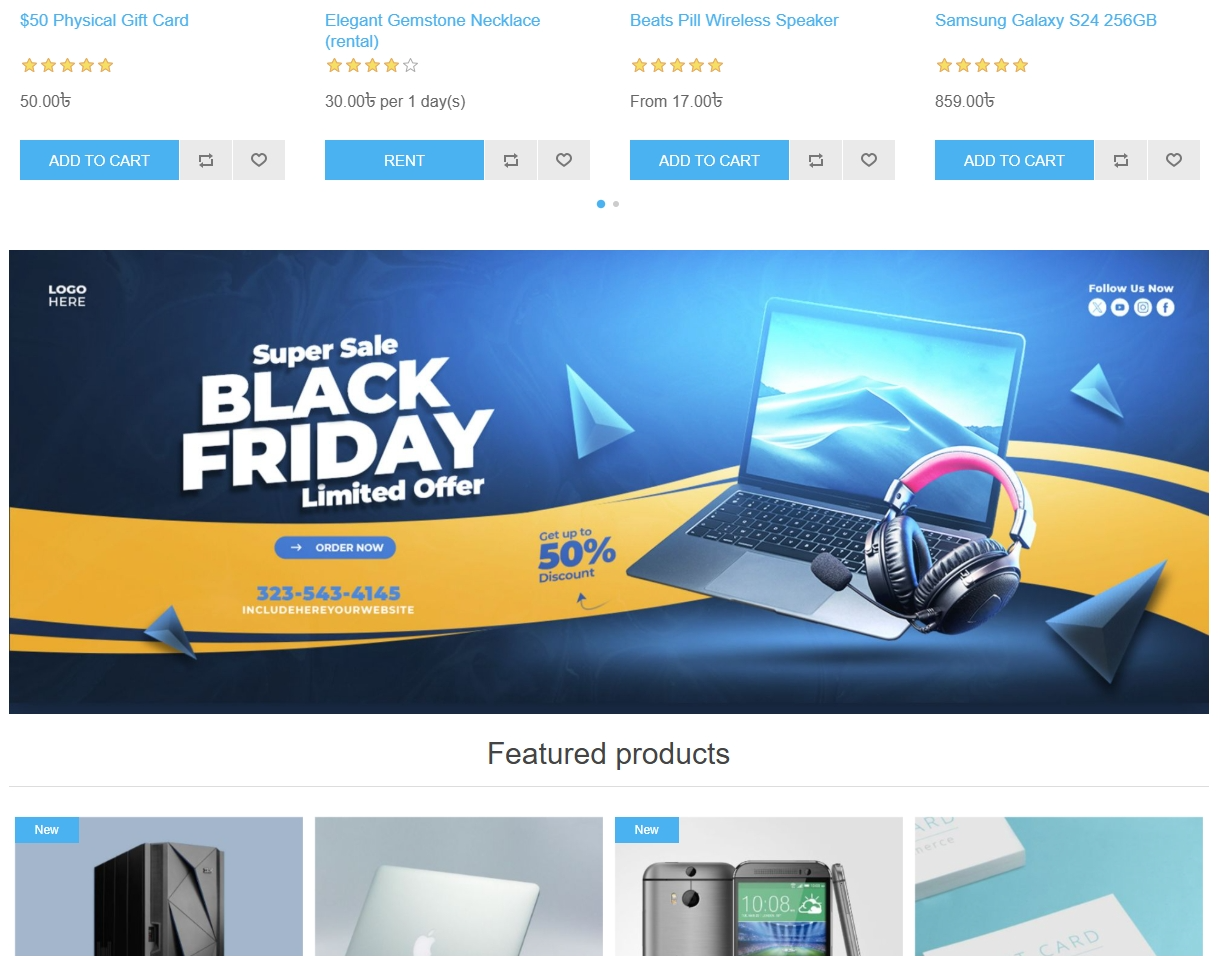
Supports all nopCommerce widget zones, allowing banners to be placed on the homepage, category pages, product pages, and more.
-
Lets you add multiple banner images to the same widget zone for rich, rotating, or stacked visual sections.
-
Offers customization for banner title, link, order, and visibility for each individual image.
-
Supports navigation URLs for each image, enabling customers to be redirected to specific products or categories upon clicking.
-
Ensures a fully responsive layout so banners look sharp across all devices.
-
Includes multi-store support, allowing different banner sets per store.
-
Allows enabling or disabling of individual banners or entire groups directly from the configuration panel.
-
Works with any page type—ideal for promotions, campaigns, or targeted content sections.
-
Lightweight and optimized for fast loading and smooth performance.